


Turbo Fax: send fax from phone
4.62.02K Reviews
App Specs
- Version
- 1.0.13
- Updated On
- License
- Free
- Downloads
- 100,000+
- Developer
- Piksoft Inc.
- Categories
- Business
- Platform
- Android
Screenshots
 Analysis by AppCompare
Sending a fax from a phone sounds like the kind of task that should have disappeared years ago, yet many offices, clinics, landlords, schools, and government departments still ask for one. Turbo Fax is built for that awkward moment when you have a document in your pocket but no fax machine nearby. I found its main appeal straightforward: it gives an Android user a way to prepare a document or use an existing PDF, then handle the faxing process from the phone instead of finding dedicated hardware.
This is a free business app from Piksoft Inc., with optional in-app purchases ranging from $1.49 to $8.99 per item. It is suitable for Everyone, requires Android 5.0 or later, and the current version is 1.0.13. The app has reached over 100 thousand installs, with an average rating of 4.6 from around 3.6 thousand ratings and about 2 thousand written reviews. Those figures suggest that it has found a practical audience, but they do not change the most important question: whether its workflow fits the occasional fax job you actually need to complete.
What to expect before sending your first fax
I would approach this as a focused fax utility rather than a complete document-management system. Its job is not to replace a scanner, word processor, cloud drive, or office suite. The useful idea is narrower: take something that is already on your phone, or capture a paper document with the phone, and move it toward faxing without making you return to a physical machine.
That distinction matters because a phone fax app is most valuable when the document is already nearly ready. If the file needs heavy editing, signatures, page rearrangement, or careful formatting, I would prepare it elsewhere first. Turbo Fax makes more sense at the final-mile stage, when the content is complete and the remaining challenge is getting it sent through a fax workflow.
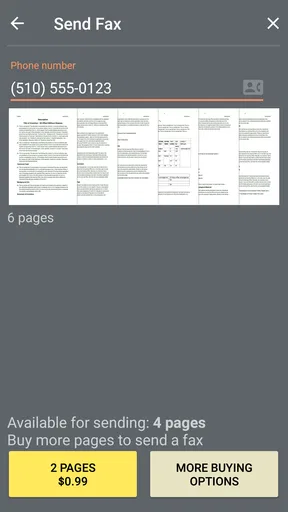
For a first-time user, the experience is easiest to understand in three parts. First, you identify the document source. That may be an existing PDF or a paper page that needs to be captured with the phone. Next, you check that the pages are readable and in the correct order. Finally, you enter the destination details and proceed through the sending flow. Keeping those stages separate prevents a common mistake: trying to solve document preparation and transmission at the same time.
The app’s free label is also worth interpreting carefully. You can install it without paying upfront, but faxing is connected to optional purchases, so the practical cost depends on how often you use it and what the particular sending flow requires. I would not install it expecting unlimited business faxing at no cost. For a one-off or occasional need, the purchase model may feel reasonable. For a busy office, repeated use deserves a direct cost comparison with a regular fax service.
Turbo Fax is aimed at Android users who want convenience more than a large collection of office tools. Its age rating of Everyone makes it broadly accessible, but that does not mean every user will find the workflow equally comfortable. Someone who is used to scanning documents, selecting files, and checking page previews will probably settle in quickly. Someone who wants a guided, highly automated process may need to slow down and verify each screen.
Worth Reading Before You Choose

EA SPORTS FC Mobile 26 Is a Bigger Football Game, but It Takes Time

Flipboard Shows What News Apps Must Do Beyond the Feed

Switching to Android Auto Means Rethinking Your Driving Routine

Google Calendar Makes a Crowded Week Easier to Manage

Ludo King Makes the Most of the Minutes Between Plans

Baby Panda World Brings Quick Play to Modern Phones, but Its Game Library Feels Busy
Who benefits most from this approach
I see three especially sensible audiences. The first is the occasional sender: a person who receives a request for a fax once every few months and does not want to buy equipment. The second is a mobile worker who keeps PDFs, forms, and photos on an Android phone and cannot rely on an office printer. The third is a small business owner who needs a backup method when the office machine is unavailable.
A realistic example is a rental application or insurance form that must be returned during the day. You may have photographed the signed pages, or already have a PDF in your phone’s storage. Instead of emailing the document and asking someone else to fax it, you can prepare it on the phone and work through the sending process while away from the office. The benefit is not excitement; it is removing a very specific delay.
I would be more cautious about using it as the only fax solution for a department that sends sensitive documents constantly. In that environment, predictable billing, centralized records, user permissions, and a larger administrative workflow may matter more than mobile convenience. A dedicated online fax service or office system could be a better fit, even if it feels less immediate.
Setting up the document without creating problems later
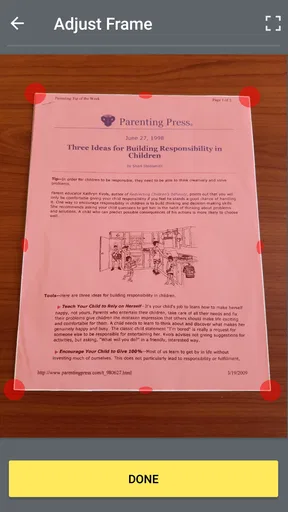
The first useful habit is to organize the file before opening the app. Give the PDF a recognizable name, check that it opens correctly, and make sure every page is present. If you are working from paper, place the pages on a flat, well-lit surface and capture them one at a time rather than rushing through a stack. A fax recipient can often tolerate plain formatting, but blurry text and cut-off signatures are much harder to fix after transmission.
When scanning from a phone, I would hold the device parallel to the page and leave a small margin around the edges. Shadows from your hand, curled corners, and dark backgrounds can make a page look acceptable on the screen while reducing its usefulness to the recipient. This is one of the less obvious trade-offs of mobile faxing: convenience improves, but the quality of the original capture becomes your responsibility.
Existing PDFs are usually the cleaner starting point. They avoid camera glare and reduce the chance of accidentally cropping a form field. Before selecting one, I recommend opening it in another viewer and checking whether it contains the pages you expect. A file that looks like a single form may include instructions, blank pages, or an unsigned copy. Removing confusion before the upload is easier than discovering it after the fax has gone out.
Another practical tip is to keep the final document self-contained. If the recipient needs a cover note, reference number, or return contact, include that information in the document when possible rather than assuming the fax process will communicate it separately. This makes the received pages easier to identify, especially when the recipient handles many incoming faxes.
The app should be treated as a transmission step, not as a place to improvise important content. I would write, sign, and proofread the document before starting. If a correction is needed, return to the original file or capture a fresh page. Repeatedly rebuilding a document inside a sending workflow increases the chance of choosing the wrong version.
What to check before you tap send
- Document identity: confirm that the selected file is the final version, not an earlier draft.
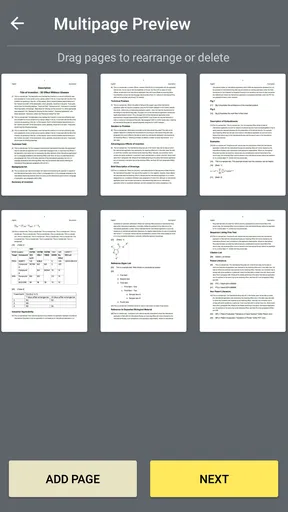
- Page order: make sure attachments follow the main form in the order the recipient expects.
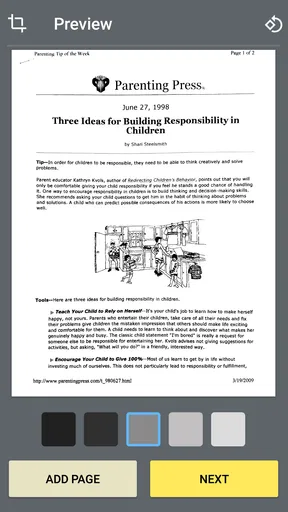
- Readability: zoom into small print, signatures, dates, and handwritten numbers.
- Destination details: enter the fax number carefully and compare it with the request you received.
- Personal information: review the pages once more because a fax cannot be casually recalled after transmission.
These checks may sound ordinary, but they are where mobile faxing succeeds or fails. The app can make the connection convenient; it cannot notice that you selected the unsigned form or typed one digit incorrectly. I would rather spend an extra minute checking the preview than discover later that an important page never reached its destination.
Getting to the first meaningful success
For a first attempt, I would choose a document that is short, complete, and easy to recognize. That gives you a clear way to judge the process without also dealing with a large packet or complicated formatting. Select the source, review the pages, enter the destination, and move through the app’s instructions one screen at a time. Do not assume that selecting a file means it has already been sent; look for the point where the app clearly indicates that the transmission step has been initiated or completed.
If the app presents a purchase choice during the process, read the wording before accepting it. The optional items are priced individually between $1.49 and $8.99, so I would treat each purchase as a deliberate decision rather than tapping through automatically. Occasional users should think about the value of the particular fax they are sending. A time-sensitive form may justify the convenience, while a routine document could be cheaper to handle through an existing workplace service.
After sending, keep the document and the destination details together until the recipient confirms receipt. This is especially useful for forms with deadlines. If the recipient reports a missing page or unreadable section, you will know exactly which version was used and can correct it without starting from memory. I also prefer to record the date and purpose in the file name or a personal note, since a phone-based workflow can otherwise be easy to forget.
The first successful action is not simply seeing a button change state. It is knowing that the right pages were prepared, the correct number was used, and the recipient can identify the transmission. That mindset makes the app more dependable. Turbo Fax can shorten the path to a fax, but the user still needs a small verification routine around it.
A workflow I would use for a time-sensitive form
- Finish the form and save a clearly named PDF, or capture each paper page in good light.
- Open the document independently and inspect signatures, dates, page edges, and attachments.
- Start the fax workflow and select the prepared file rather than editing under pressure.
- Compare the destination number with the original request before continuing.
- Read any purchase prompt carefully and approve only the option you intend to use.
- Keep the source document available until the recipient confirms that the pages are usable.
This sequence is slightly slower than simply selecting a file and rushing ahead, but it is much safer for medical forms, employment paperwork, applications, and signed agreements. It also helps a new user understand where the app ends and personal document responsibility begins.
Common points of confusion and practical limitations
The biggest possible misunderstanding is the difference between scanning and faxing. Capturing a page with the phone does not itself deliver anything to the recipient. It only creates the material that still has to pass through the sending process. Conversely, choosing an existing PDF may save time, but it does not guarantee that the document is suitable. A low-quality PDF, an incorrect page order, or a missing signature remains a problem regardless of how convenient the app is.
Another source of friction is the expectation that “free” means every fax action is free. Turbo Fax is free to install, while in-app purchases are available. I would make the payment decision before an urgent deadline rather than discovering the purchase step when a form must be sent immediately. If you are evaluating it for work, test the workflow with a non-critical document and decide whether the pricing makes sense for your normal volume.
Phone scanning also has limits that are easy to underestimate. A camera can capture a page, but it may struggle with glossy paper, faint ink, folded documents, or handwriting at the edge of a sheet. A flatbed scanner remains better for archival-quality copies and delicate originals. If the fax recipient needs a perfectly legible technical drawing or a high-quality image, I would use a proper scanner or a specialized document service instead.
There is also a human-factor issue: small screens encourage quick approval. On a phone, it is tempting to glance at a thumbnail and assume the pages are fine. I recommend opening the clearest preview available and checking the details that matter most. Pay particular attention to decimal points, account numbers, signatures, and dates, where a small visual defect can change the meaning of the entire document.
For privacy-sensitive material, I would consider the setting in which I am using the app. Avoid preparing confidential pages while someone can easily see the screen, and do not leave the source files scattered across unrelated folders. The app’s convenience is strongest when paired with careful handling. If your organization has strict document-retention or compliance requirements, check whether a consumer-style mobile workflow matches those rules before making it routine.
Turbo Fax may also be the wrong choice when you need extensive collaboration. If several people must review, comment on, and approve a document before sending, a shared office platform will usually be more efficient. This app is better when the document is already finalized and one person needs a direct way to fax it. That is a strength for simple jobs and a limitation for multi-step business processes.
How it compares with the usual alternatives
The traditional fax machine still wins when an office sends and receives faxes throughout the day. It is already connected, familiar to staff, and often integrated with a printer and scanner. Its weakness is access: it is useless when you are away from the office, and maintaining hardware for rare fax requests can feel excessive. Turbo Fax reverses that balance by making mobility the priority.
Email is usually easier for ordinary documents, especially when the recipient accepts attachments. It also fits naturally into conversations and leaves a visible message thread. The problem is that some organizations specifically require faxing, whether for their internal process or because they do not accept email for a particular form. In those cases, a phone fax tool fills a gap that email cannot.
Dedicated online fax services may offer a broader business environment, including recurring plans, web access, account administration, and more formal record handling. I would choose one of those when faxing is a regular operational requirement. Turbo Fax is more appealing when you want a focused Android option without committing to a larger service, particularly for occasional, personal, or small-business use.
A multifunction printer is another reasonable alternative if you already own one. It can provide better paper handling and a more comfortable review surface, but it ties you to a physical location. The phone app is the more flexible option when the document and the deadline are both mobile. The trade-off is that you must manage image quality, file selection, and payment choices yourself.
In my view, the app’s best position is between these alternatives: more direct than asking someone else to fax a PDF, more mobile than a machine, and less elaborate than a full online fax platform. That middle ground is useful, but only if you are comfortable taking responsibility for the document checks that an office workflow may normally handle.
My final view after using it for the right kind of job
I would recommend Turbo Fax to an Android user who occasionally needs to send a fax and values being able to do it from the phone. The app’s purpose is easy to understand, and its support for both phone-captured pages and existing PDFs covers the two situations most people encounter. Its free installation lowers the barrier to trying the workflow, while the optional purchases mean frequent users should think about ongoing cost before relying on it for every document.
I would not recommend making it your automatic choice for high-volume office faxing, complex document approval, or situations where strict archival controls are essential. A dedicated service, multifunction printer, or established workplace system may be more appropriate there. Likewise, if the original document is difficult to photograph clearly, a real scanner is still the better tool.
For a first-time user, my advice is simple: prepare the document before opening the app, inspect every page, verify the destination number, and read the purchase screen carefully. Then keep the original until the recipient confirms success. The real strength is dependable convenience when the document is already ready to go.
Turbo Fax, developed by Piksoft Inc., is not trying to turn a phone into a complete office. It is useful because it addresses one stubborn task directly. If that task appears in your life only occasionally, the app can save a frustrating trip to a fax machine. If it appears every day, compare its per-use approach with a more structured service. For the right user and the right document, I found it a practical backup that makes an outdated requirement considerably easier to handle.
Pros
- Send faxes directly from your smartphone without a physical fax machine.
- Supports common document formats for quick attachment and transmission.
- Useful for remote workers and businesses needing occasional fax access.
- Fax status updates help confirm whether a document was delivered.
- Saves time by avoiding printing
- scanning
- and manual faxing steps.
Cons
- Fax credits or subscriptions may become expensive for frequent users.
- Delivery can depend on mobile data or Wi-Fi quality.
- Some recipients may still require traditional fax numbers or formats.
- Sensitive documents are uploaded digitally
- raising privacy concerns.
- Advanced features may be limited unless you upgrade to a paid plan.
FAQs for Turbo Fax: send fax from phone
What is Turbo Fax: send fax from phone?
Turbo Fax: send fax from phone is a mobile faxing app designed to let users send documents directly from an Android or iOS device. It typically allows you to select files such as PDFs, photos, or scanned pages, enter a recipient’s fax number, and submit the fax without needing a traditional fax machine. It is useful for occasional personal, business, medical, or administrative faxing while traveling or working remotely.
How do I send a fax with Turbo Fax?
To send a fax, open the app, choose a document from your phone or scan pages using the camera, and review the file before continuing. Enter the recipient’s fax number, including the correct country or area code when required, then follow the on-screen instructions to submit it. Before sending, check the page order, image quality, and recipient details carefully because incorrect information may result in a failed or misdirected fax.
Does Turbo Fax require payment or a subscription?
Faxing services commonly use credits, one-time purchases, or a subscription model rather than being completely free. Turbo Fax may allow you to install the app without charge while requiring payment before sending certain documents, especially longer faxes or international transmissions. Prices and available plans can change, so review the in-app purchase screen, trial terms, renewal conditions, and cancellation policy before confirming any payment.
What documents and file types can I send through Turbo Fax?
The app is generally intended for common office and image files, including PDF documents and photos captured with your phone. Scanned pages can usually be combined into a fax before transmission, which is convenient for forms, contracts, receipts, and identification paperwork. For the best result, use clear, high-contrast pages and avoid blurry photographs. Check the app’s current file-size and format limitations if your document contains many pages.
Is Turbo Fax secure and does it confirm successful delivery?
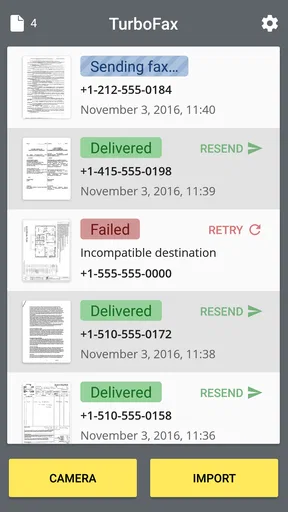
Turbo Fax may be convenient for sending sensitive paperwork, but users should still review its privacy policy and avoid uploading confidential documents unless they understand how files and personal information are handled. A fax may show statuses such as sending, delivered, or failed, although confirmation does not guarantee that the recipient has read the document. Keep any transmission receipt or status record, particularly when sending legal, medical, or business documents.


